
Below are the steps to Scan to Google Drive via the school copiers:
- Use your code to unlock the copier
- Select the "Scan" tile

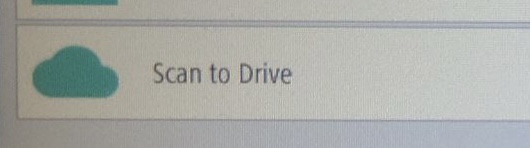
- Select "Scan to Drive"
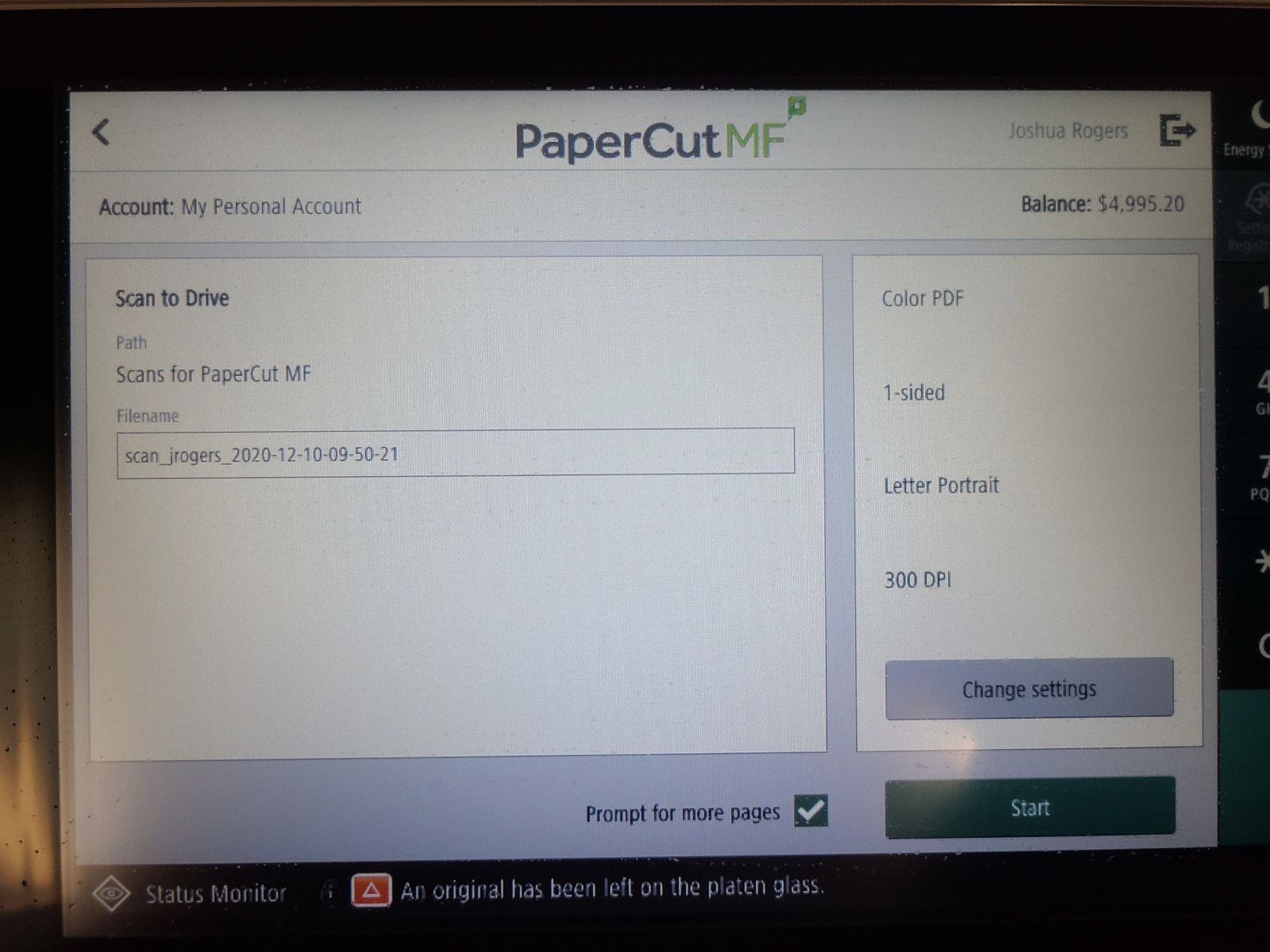
- Set your file name and adjust any settings as needed then select "Start"
- If this is your first time scanning to Drive, you will receive an email with the subject "Authorize Scans for PaperCut MF to save to your Google Drive."
- In the email, click on "Login to Google Drive"

- Log in with your school account and click "Allow" on the permissions page
Comments
Please sign in to leave a comment.